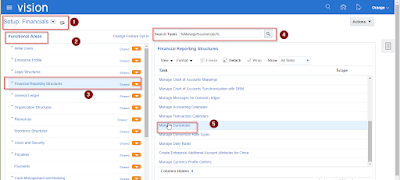
Thursday, 16 October 2014

what is RETROACTIVE PRICING and How to Change the Blanket agreement price after approve?


RETROACTIVE  PRICING

Prices for items on blanket agreements can change over the effective period of an agreement as a result of ongoing negotiations between the buyer and the supplier. In fact, it is common practice in certain industries to initiate and execute against an agreement with an interim price. A firm price may get finalized several months into the life of the agreement. In these scenarios it is possible that the updated price is applicable retroactively. Oracle Purchasing allows buyers to make price changes on global blanket agreements and on blanket agreements.

Oracle Purchasing can optionally update prices on orders (Blanket Releases & Standard POs) to reflect the latest agreement price, even if there has been receiving and invoicing activities against them. Additionally, for orders that have been received, Oracle Purchasing automatically adjusts the accrued liability to reflect the latest pricing. Finally, for orders that have been invoiced, Oracle Purchasing automatically generates price adjustment invoices in Oracle Payables. Depending on the nature of the change, the Payables department can then process either a payment or a debit memo request against the price adjustment invoice.
 SETUP:
1.     Set the profile option(PO: Allow Retroactive Pricing of Pos’) to purchasing responsibility
2.     Set the Retroactive Price Adjustment Account in the receiving options.
3.     While creating blanket po uncheck the cumulative pricing option under agreement tab.


To set the profile option PO: Allow Retroactive Pricing of Pos’  to purchasing resp
If we set ---àALL RELEASES, the it effects all releases for that particular blanket po including existing matched invoices also.
            -----àOPEN RELEASES, it effects only those releases which are not matched with invoices


To set the RETROACTIVE PRICE ADJUSTMENT ACCOUNT in the receiving options

To create blanket purchase agreement.

Here we are creating blanket purchase agreement against item123 with the price 20 and amount agreed is 100000


Disable the cumulative pricing in the agreement tab


The purchase order(3) has been approved


To release(1) the purchase order against existing blanket po(3)
Here we are releasing 1000 items at the price 20. The total release for release 3-1 IS 20000.

To release(2) the purchase order against existing blanket po(3)

Here we are releasing 500 items at the price 20. The total release for release 3-2 is  10000.

To release(3) the purchase order against existing blanket po(3)

Here we are releasing 1500 items at the price 20. The total release for release 3-3 is 30000.
We are releases an amount of 60000 for PO-3. Now I am receiving the items for release-1 and release-2
And for release-1 I inspected the items and send to the inventory.


Creating invoice(123) against release-1
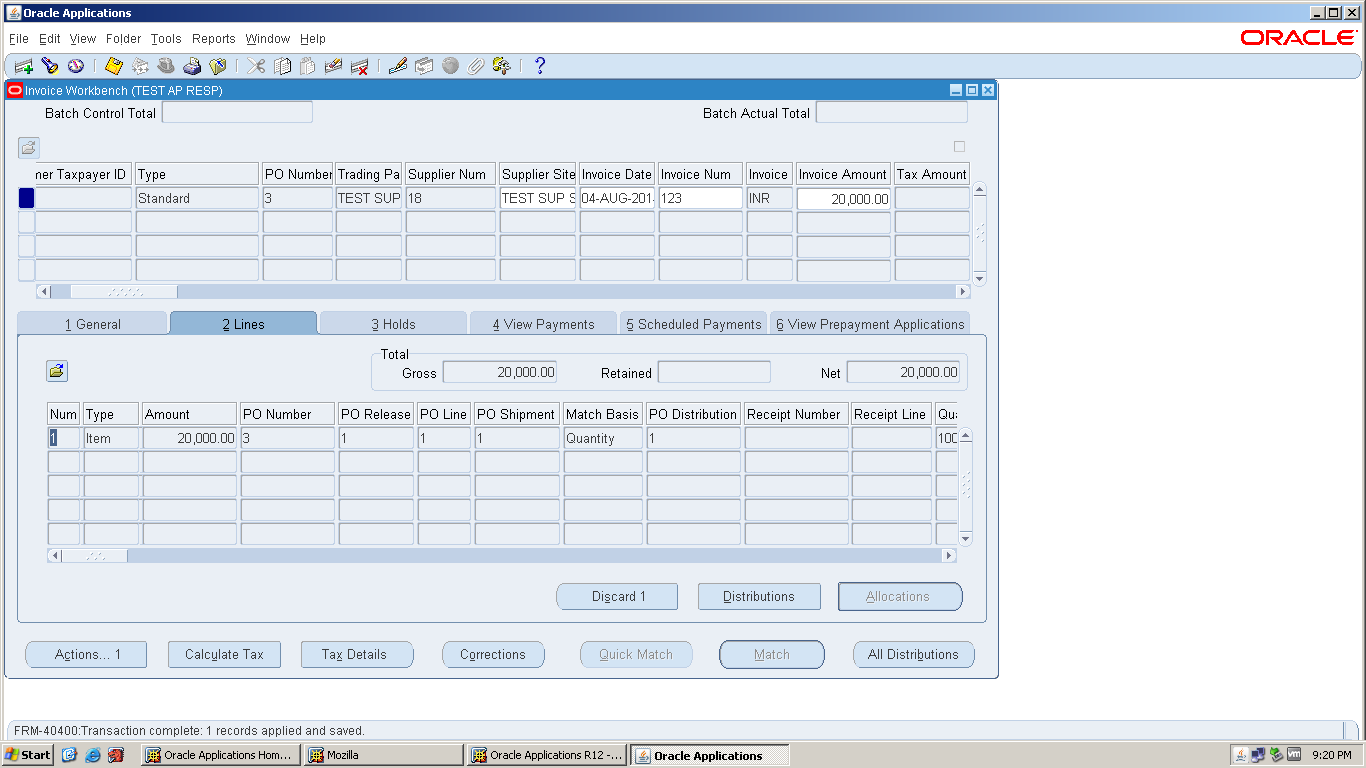


Here we paying the amount for invoice 123

Querying the invoice, it shows the amount is paid


Query the blanket po(3) and Now we are changing the price of an item (20 to 25) in that agreement


After modifying the amount it asks for reapproval


While approving the PO, enable apply price update to existing po’s and releases under additional options

After approving the PO, till it shows the amount released is 60000.


For changing the released amount in the blanket PO, we have to run a program “workflow background process
Under parameters,--à item type should be PO APPROVAL

----àprocess deferred should be YES

Now check the blanket PO(3) released amount. It shows 75000 instead of 60000.
 Now verify the release-1, it shows the total released amount as 25000 instead of 20000
And it shows the billed amount as 20000. Because we paid only 20000


Check the status of release-2. It shows 12500 instead of 10000

We ordered 500 and received 500
Check the status of release-3


Now verify the invoice (123),it shows still the price is 20
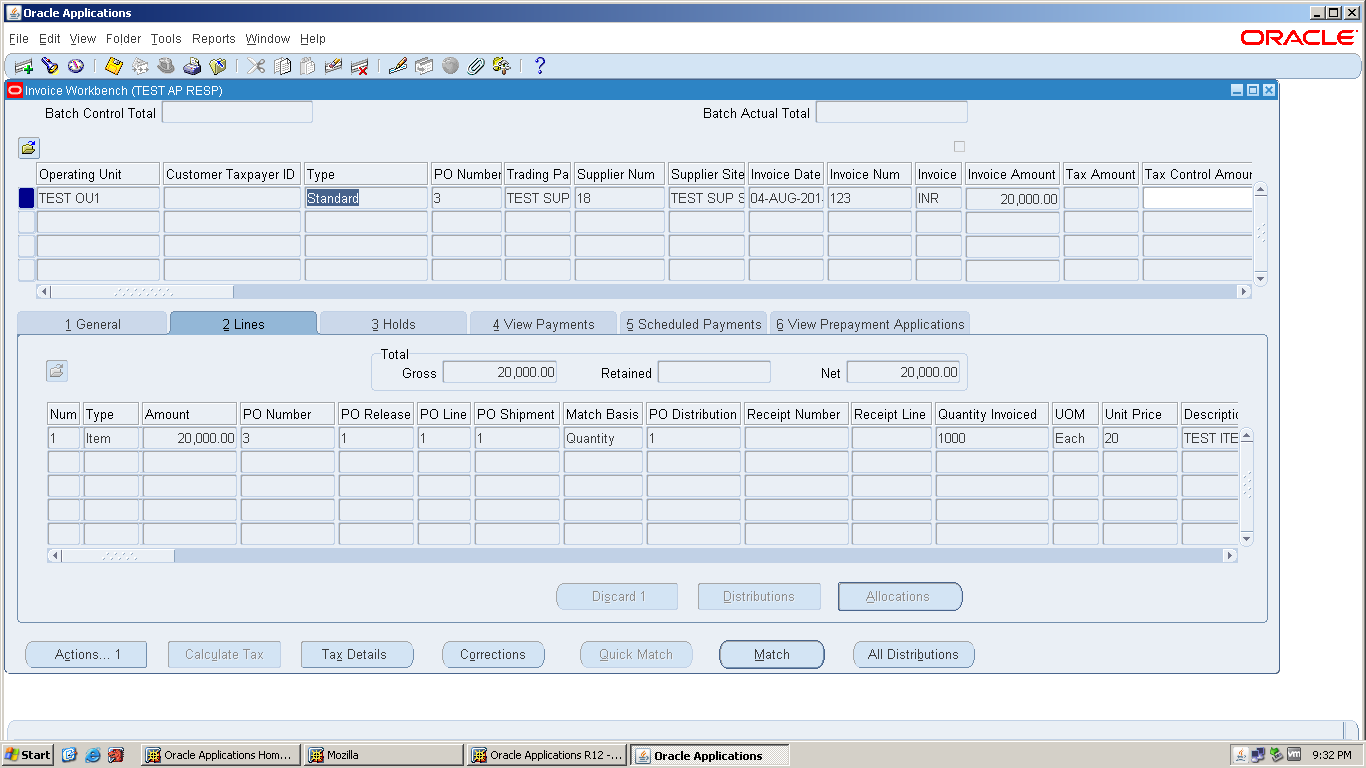
For changing the item cost in the existing invoices, we have to run “create adjusting documents in payables program”


After completing the request query the invoice(%123%)
We get two invoices for that po, one is standard(already paid) and another one is PO PRICE ADJUSTMNET
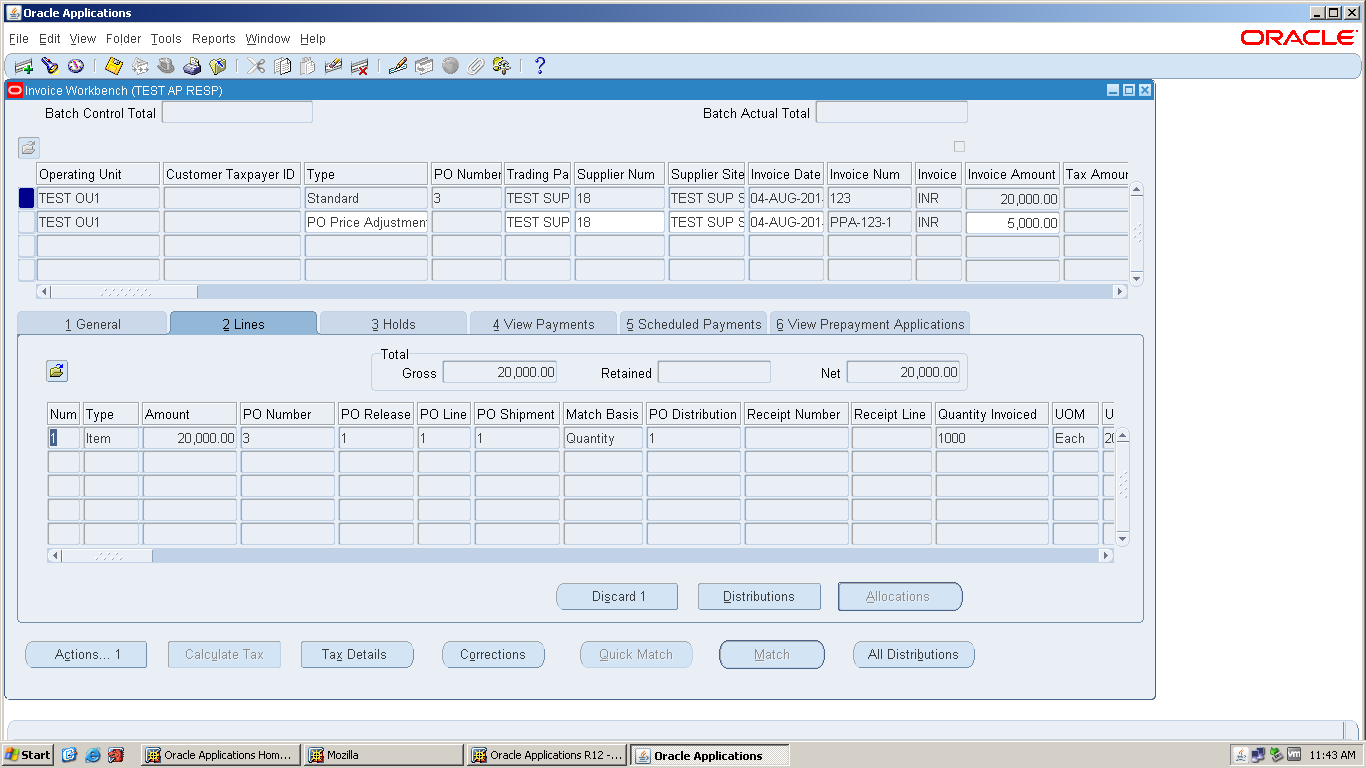


The price for invoice 123 is still shows as 20.but for extra 5 rupess it creates new invoice PPA-123-1

TO CHECK THE PO CHANGE HISTORY:

Purchase orders-àpo change history


Verify the changes in that particular supplier.


Select the compare to po for release 3-1
This is the process for price adjustments are exists after the blanket agreement

Saturday, 21 December 2013

Receivables Activities in Oracle Receivables

 Receivables Activities

Define receivables activities to default accounting information for certain activities, such as miscellaneous cash, discounts, late charges, adjustments, and receipt write-off applications. 
Activities that you define appear as list of values choices in various Receivables windows. You can define as many activities as you need.
The Tax Rate Code Source you specify determines whether Receivables calculates and accounts for tax on adjustments, discounts, and miscellaneous receipts assigned to this activity. If you specify a Tax Rate Code Source of Invoice, then Receivables uses the tax accounting information defined for the invoice tax rate code(s) to automatically account for the tax. If the Receivables Activity type is Miscellaneous Cash, then you can allocate tax to the Asset or Liability tax accounts that you define for this Receivables Activity.
Receivables uses Late Charges activity's accounting information when you record late charges as adjustments to overdue transactions. 
Query the Chargeback Adjustment activity that Receivables provides and specify GL accounts for this activity before creating chargebacks in Receivables.
Query the Credit Card Chargeback activity that Receivables provides and specify a GL clearing account for this activity, before recording credit card chargebacks in Receivables.
You can make an activity inactive by unchecking the Active check box and then saving your work.
Attention: Once you define an activity, you cannot change its type. However, you can update an existing activity's GL account, even if you have already assigned this activity to a transaction.
Prerequisites
If you use Receivables with an installed version of Oracle General Ledger, your Accounting Flexfields are already set up. If you are using Receivables as an Oracle Financials standalone product, you must define the Accounting Flexfield and the GL accounts for each receivables activity that you plan to use to reflect your current accounting structure.

Activity Types
An activity's type determines whether it uses a distribution set or GL account and in which window your activity appears in the list of values. You can choose from the following types:
Adjustment: You use activities of this type in the Adjustments window. You must create at least one activity of this type.
Note: In the Adjustments window, you cannot select the Adjustment Reversal, Chargeback Adjustment, Chargeback Reversal, and Commitment Adjustment activities to manually adjust transactions. These four activities are reserved for internal use only, and should not be end dated.
When you reverse a receipt, if an adjustment or chargeback exists, Receivables automatically generates off-setting adjustments using the Adjustment Reversal and Chargeback Reversal activities. When your customers invoice against their commitments, Receivables automatically adjusts the commitment balance and generates an off-setting adjustment against the invoice using the Commitment Adjustment activity.
Bank Error: You use activities of this type in the Receipts window when entering miscellaneous receipts. You can use this type of activity to help reconcile bank statements using Oracle Cash Management.
Claim Investigation: You use activities of this type in the Receipts Applications and QuickCash windows when placing receipt overpayments, short payments, and invalid Lockbox transactions into claim investigation. The receivable activity that you use determines the accounting for these claim investigation applications.
For use only with Oracle Trade Management.
Credit Card Chargeback: Use activities of this type in the Receipts Applications window when recording credit card chargebacks. This activity includes information about the General Ledger clearing account used to clear the chargebacks. Receivables credits the clearing account when you apply a credit card chargeback, and then debits the account after generating the negative miscellaneous receipt. If you later determine the chargeback is invalid, then Receivables debits the clearing account when you unapply the credit card chargeback, and then credits the account after reversing the negative miscellaneous receipt. Only one activity can be active at a time.
Credit Card Refund: You use activities of this type in the Receipts Applications window when processing refunds to customer credit card accounts. This activity includes information about the General Ledger clearing account used to clear credit card refunds. You must create at least one activity of this type to process credit card refunds.
Earned Discount: You use activities of this type in the Adjustments and the Remittance Banks windows. Use this type of activity to adjust a transaction if payment is received within the discount period (determined by the transaction's payment terms).
Endorsements: The endorsement account is an offsetting account that records the endorsement of a bill receivable. This is typically defined with an Oracle Payables clearing account.
Late Charges: You use activities of this type in the System Options window when you define a late charge policy. You must define a late charge activity if you record late charges as adjustments against overdue transactions. If you assess penalties in addition to late charges, then define a separate activity for penalties.
Miscellaneous Cash: You use activities of this type in the Receipts window when entering miscellaneous receipts. You must create at least one activity of this type.
Payment Netting: You use activities of this type in the Applications window and in the QuickCash Multiple Application window when applying a receipt against other open receipts.
The GL Account Source field defaults to Activity GL Account and you must enter a GL account in the Activity GL Account field. The GL account that you specify will be the clearing account used when offsetting one receipt against another receipt. The Tax Rate Code Source field defaults to None.
You can define multiple receivables activities of this type, but only one Payment Netting activity can be active at any given time.
Prepayments: Receivables uses activities of this type in the Applications window when creating prepayment receipts. When the Prepayment activity type is selected, the GL Account Source field defaults to Activity GL Account and you must enter a GL account in the Activity GL Account field. The GL account that you specify will be the default account for prepayment receipts that use this receivables activity. The Tax Rate Code Source field defaults to None. You can define multiple receivables activities of this type, but only one prepayment activity can be active at any given time.
Receipt Write-off: You use activities of this type in the Receipts Applications and the Create Receipt Write-off windows. The receivable activity that you use determines which GL account is credited when you write off an unapplied amount or an underpayment on a receipt.
Refund: Use activities of this type in the Applications window to process automated non-credit card refunds. This activity includes information about the General Ledger clearing account used to clear refunds. Create at least one activity of this type. Only one activity can be active at a time.
Short Term Debt: You use activities of this type in the GL Account tabbed region of the Remittance Banks window. The short-term debt account records advances made to creditors by the bank when bills receivable are factored with recourse. Receivables assigns short-term debt receivables activities to bills receivable remittance receipt methods.

Unearned Discount: You use activities of this type in the Adjustments and the Remittance Banks windows. Use this type of activity to adjust a transaction if payment is received after the discount period (determined by the transaction's payment terms).

Friday, 22 November 2013

Data Loader commands

Data load is a powerful tool for uploading the data into the application. There is no technical knowledge to use this tool.
This tool is most commonly used for inserting the values into the VALUESET and CALENDAR CREATION etc
Following are the keys are helpful for using the dataload
TAB      Press the Tab key
ENT      Press the Enter key
*UP      Press the up arrow key
*DN      Press the down arrow key
*LT       Press the left arrow key
*RT       Press the right arrow key
*SAVE  Save the current record
*SP      Save & proceed
*FE       Open the field editor
*PB      Navigate to the previous block
*NB      Navigate to the next block
*PF       Navigate to the previous field
*NF       Navigate to the next field
*PR      Navigate to the previous record
*NR      Navigate to the next field
*IR        Insert a new record
*CL       Clears the form field but does not delete any data
*ER      Clears a record from the form fields but does not delete it
*DR      Delete the current record
*FR       Navigate to the first record
*LR       Navigate to the last record
*SB      Press the Spacebar. This is useful for toggling the setting of radio buttons and check boxes instead of using the mouse.
*ST       Select the entire field
*FI        Open the find window
*FA       Find all records
*QE      Put the form in to the query enter mode
*QR      Run a query when the form is in query enter mode
*BM      Open the block menu. This is used in Oracle E-Business to select the block or tab to which to navigate.
*AX      Sends the Alt + X keystroke where X is a single letter (A-Z).
Note : In most applications the menus, buttons and other controls can usually be activated by using the Alt key combined with one other key. DataLoad provides *AX so that all possible Alt key combinations are available as a DataLoad command.
The following commands are built-in to DataLoad to provide additional functionality beyond sending data and keystrokes to applications. These commands cannot be edited or replaced in the commands window. The built-in commands are listed in the following table. Where available, please click the link on the command name for more information about using each command.
*SLN or *SL(N)      Pause the load for N seconds
*CW(window)        Change to window window
*ML(coordinates)    Position the mouse at coordinates and press the left button
*MR(coordinates)  Position the mouse at coordinates and press the right button
*DL(coordinates)  Position the mouse at coordinates and double click the left button     
PROMPT(message)   Prompt the user with message and wait for a response     
PHP(function)   Calls a PHP function when Scripting used with a Macro load
The following keys can be used to edit, control and navigate around the spreadsheets:
CTRL + A
Selects the entire spreadsheet
CTRL + C
Copies the selected cells
CTRL + D
Uses the Fill Down command to copy the topmost cell of a selected range in to the cells below
CTRL + F
Opens the Find window
CTRL + H
Opens the Replace window
CTRL + N
Creates a new, blank load
CTRL + O
Displays the Open window to open a new file
CTRL + S
Saves the current load
CTRL + T
Opens the column setup window
CTRL + V
Pastes data from the Windows clipboard
CTRL + X
Cuts the selected cells


F1
Displays the DataLoad User Guide
F2
Opens the current cell for editing


ARROW KEYS
Move one cell up, down, right or left in the spreadsheet
CTRL + ARROW KEY moves to the edge of the current data region in a spreadsheet
CTRL +SHIFT + ARROW KEY extends the selection of cells to the last non blank cell in the same column or row as the active cell, or if the next cell is blank, extends the selection to the next non blank cell.
BACKSPACE
Clears the content of the active cell. In cell editing mode, it deletes the character to the left of the insertion point.
DELETE
Clears the content of the active cell. In cell editing mode, it deletes the character to the right of the insertion point.
END
Moves to the last cell in the current row. If SHIFT is also depressed the selection is extended to the last cell in the current row.
CTRL + END moves to the last cell in the spreadsheet. If SHIFT is also depressed the selection is extended to the last cell in the spreadsheet.
ENTER
Takes the current cell out of edit mode, if required, and moves the active cell down by one row.
ALT + ENTER inserts a new line in the current cell, allowing multi line editing within cells. ALT + ENTER also puts the long cell edit box above the spreadsheets in to multi line mode but in that area new lines can then be inserted using just ENTER without the ALT key.
ESC
Cancels cell data entry and takes the cell out of edit mode.
HOME
Moves to the first cell in the current row. If SHIFT is also depressed the selection is extended to the first cell in the current row.
CTRL + HOME moves to the first cell in the spreadsheet. If SHIFT is also depressed the selection is extended to the first cell in the spreadsheet.
PAGE UP
Moves one page up in the spreadsheet.
SHIFT + PAGE UP moves one page up in the spreadsheet and extends the selection
CTRL + PAGE UP moves to the topmost cell that is currently visible
SHIFT + CTRL + PAGE UP extends the selection to the topmost cell that is currently visible
ALT + PAGE UP navigates to the previous spreadsheet, i.e. from the footer to main to header spreadsheets
PAGE DOWN
Moves one page down in the spreadsheet.
SHIFT + PAGE DOWN moves one page down in the spreadsheet and extends the selection
CTRL + PAGE DOWN moves to the bottom most cell that is currently visible
SHIFT + CTRL + PAGE DOWN extends the selection to the bottom most cell that is currently visible
ALT + PAGE DOWN navigates to the next spreadsheet, i.e. from the header to main to footer spreadsheets
TAB
Moves to the next cell in a spreadsheet
SHIFT + TAB moves to the previous cell in a spreadsheet


Fusion General Ledger: Currency creation Setup/ Configuration

Definition: A system of money in general use in a particular country called currency Types of currencies Functional currency/Accounted curre...