Showing posts with label GENERAL LEDGER.. Show all posts

Saturday, 14 May 2022

Fusion General Ledger: Currency creation Setup/ Configuration

Definition: A system of money in general use in a particular country called currency

Types of currencies

  1. Functional currency/Accounted currency/ Primary currency (Local currency)
  2. Entered currency / Foreign currency (Foreign currency)
  3. Reporting currency (Head quarter currency)
  4. Stat currency

These three currencies called monitory currencies and Stat currency (Ratios, meters and feet) called non monitory currencies 

  1. Local currency in India = INR
  2. Local currency in USA = USD

For India INR is functional currency (Local currency) and USD is foreign currency 

For USA USD is functional currency (Local currency) and INR is foreign currency

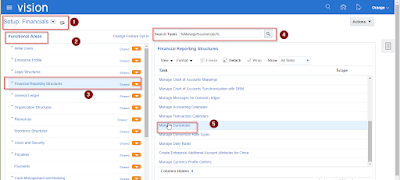
  • Go to set up and maintenance
  • Set up: Financials
  • Functional Area : Financial reporting structure 
  • Task: %Mange %currencies%
  • Select Manage currencies

  •  Then select Manage currencies after UI (User Interface) will open)
  •  All currencies are predefined in system and we can create also
  •  Search for currency code (INR), it is predefined currency it should be Enabled then only we can use this currency, Start date should be back date
  •  Save and close or save

Tuesday, 8 August 2017

Year End Closing Process

Year End Process


Use the following checklist as a guideline to perform year-end processing in Oracle General Ledger for your ledgers.

Set the status of the first accounting period in the new fiscal year to Future Entry.

Note: It is advisable not to open the first period of the new fiscal year until all of the year-end processing for the last period of the current year has completed.

§  (Optional) If you are required to have an actual closing journal entry that shows the closing of your income statement accounts to retained earnings, submit the Create Income Statements Closing Journals program. This program creates an auditable closing journal entry.
§  (Optional) If you submitted the Create Income Statement Closing Journals program, post the closing journals to update account balances. Your income statement will reflect zero balances.
§  (Optional), Submit the Create Balance Sheet Closing Journals program. Post the Balance Sheet Closing Journal. Your balance sheet will now reflect zero balances.
§  Close the last period of the fiscal year and Open the first period of the new fiscal year using the Open and Close Periods window.
§  Opening the first period of a new year automatically closes out your income statement and posts the difference to your retained earnings account specified for your ledger in the Accounting Setup Manager.
§  Note: If you have already run the Create Income Statement Closing Journals program, where the closing account specified was the retained earnings account, opening the new fiscal year has no further impact on retained earnings because the income statement accounts now have zero balances.
§  In the first adjusting period of the new fiscal year, reverse the balance sheet closing journals to repopulate the balance sheet accounts. Post the generated reversing journals.

Income Statement Closing


General Ledger provides two options for the Income Statement Closing Journals. You can choose to zero out each income statement account, and post the balance to the retained earnings account. Alternatively, you can post the reciprocal of the net income balance to an income statement offset account instead of zeroing out each revenue and expense account.
The Income Statement Closing Journals program generates journals to close out the year - to - date (YTD) actual balances of a range of revenue and expense accounts. The Income Statement Closing Journals program can accept two account templates as parameters for the closing journal.

The Retained Earnings account template
The Income Statement Offset account template
The Retained Earnings account template is a required parameter. The Income Offset account template is an optional parameter.

Option 1: Income Statement Close
When you run the process, Create Income Statement Closing Journals, and you enter an account for the field, Closing Account in the Parameters window, entries are posted against each revenue and expense account in the account range processed. It is the reciprocal of the account's YTD balance and zeroes out each account. The amount posted to the retained earnings account is effectively the net sum of the revenue and expense accounts' YTD balances.
If there are income statement balances in both the ledger currency and entered currencies of a ledger, the closing process produces a journal batch that contains separate journals for each currency processed. For the ledger currency, the journal will only have entered amounts as converted amounts do not apply. For entered currencies, the journal will have both entered and converted amounts.
Stat account balances are not processed by the program.
Option 2: Income Statement Offset
When you run the process, Create Income Statement Closing Journals, and you enter an account for the fields, Closing Account and Income Offset Account in the Parameters window, the journal generated will be similar to that described above except for the following:
The revenue and expense accounts included in the specified account range will not be zeroed out. Instead, the program will take the net sum of the revenue and expense accounts. This sum includes the balance in the income statement offset account. It will then post the reciprocal of the net sum to the income offset account, in the appropriate debit (DR) or credit (CR) column.
The amount posted to the retained earnings account will be the reciprocal of the amount posted to the income offset account. This retained earnings amount will then also be equal to the net sum of the revenue and expense accounts processed.
Runà Create Income Statement Closing Journals
Before running the process, Create Income Statement Closing Journals, review the following activities for the ledgers you plan to close. If you use reporting currencies (journal and subledger level), review the following activities for the reporting currencies you plan to close.
ü  Post all revenue and expense adjustment entries to the appropriate periods.
ü  Print General Ledger accounting and analysis reports.
ü  Ensure the period you are closing is an Open period.
ü  If you have accounts you want to process that have any of the following attributes:
ü  Enabled flag was disabled
ü  Allow Posting flag was disabled
ü  Effective date is out of range

Temporarily re-enable the account to post the generated closing journal. The Segment Value Inheritance program can help you temporarily re-enable these accounts. Use the Segment Value Inheritance program to disable these accounts once the closing journal has been posted.

1.    Run the close process, Create Income Statement Journals in the adjusting period that represents the last day of your fiscal year or the period you want to close for your ledger or ledger set.
2.    In the Parameters window, enter an account in the Closing Account field. The Category field below defaults to display Income Close.
3.    If you are closing a period and you entered an account for the Closing Account and Income Offset Account fields in the Parameters window, submit your request to generate closing journals. The category field below defaults to display Income Offset.
4.    Post the income statement closing journals to update year-to-date actual balances or period to date actual balances. If you chose the Income Statement Offset option, proceed to your next open period.
Note: Should you need to make adjustments for your ledger after their income statement closing journals are posted, reverse and post the original closing entries, make your adjustments, then rerun the closing process to capture the new adjustments for that ledger.
5.    Run the Open Period program to open the first period of the new fiscal year. This program closes out all revenue and expense accounts to the Retained Earnings account. However, because posting of the closing journals has already zeroed out the revenue and expense accounts to the Retained Earnings account, there are no balances to transfer and no further effect on Retained Earnings.
6.    If revenue and expense adjustments need to be made after opening the new fiscal year for your ledger, posting those back - dated adjustments will automatically update the beginning balances of the Retained Earnings account for all open periods in the New Year. However, amounts in the closing journal will not reflect the adjustments. For accuracy, you must reverse the closing journals, post, enter your adjustments, run the Create Income Statement Closing Journals, and post for your ledger.

Balance Sheet Closing


When you run Create Balance Sheet Closing Journals, journal entries are created to reverse debits and credits of ending year-to-date actual balances for the period you want to close. The balance, which is the net of the reversed asset and liability accounts, is transferred to the closing account you specify.
Note: Your balance sheet should be balanced if you completed the Close Process: Create Income Statement Closing Journals to update the retained earnings account. If the range of balance sheet accounts is balanced, then there is no transfer of balances.
Before running this program, review the following activities for the ledgers you plan to close.
Create an accounting calendar that includes two adjusting periods: one for the last day of the fiscal year you are closing, and one for the first day of the new fiscal year. This does not affect account balances in periods used for reporting.
ü Post any adjustment entries to the appropriate periods.
ü Print General Ledger accounting and analysis reports.
ü Ensure the period you are closing is an Open period.

RunàCreate Balance Sheet Closing Journal

1.       Run the close process, Create Balance Sheet Closing Journals in the last adjusting period of the fiscal year you want to close for your ledger or ledger set.
Note: If you want to run the close process for your primary ledger and the associated secondary ledgers simultaneously, create a ledger set that contains all of the ledgers. Then run the close process for the ledger set so that they can all be processed from a single submission.
2.       Post the balance sheet closing journals to zero-out balance sheet account balances.
Note: Should you need to make adjustments for your ledger after their balance sheet closing journals are posted, reverse and post the original closing entries, make your adjustments, then rerun the closing process to capture the new adjustments for that ledger.
3.       In the first adjusting period of the new fiscal year, reverse the balance sheet closing journals to repopulate the balance sheet accounts.
4.       Post the generated reversing journals.


Thursday, 8 October 2015

Query to get the Receipt Methods in 11i with Bank account details including GL Code Combinations

SELECT arma.org_id,ARC.NAME RECEIPT_CLASS,ARC.receipt_class_ID,ARC.CREATION_METHOD_CODE,
ARC.REMIT_FLAG,ARC.CREATION_STATUS,
ARM.NAME RECEIPT_M,
ARM.END_DATE as receipt_method_end_date,
ARM.RECEIPT_METHOD_ID,
ARMA.ORG_ID,
arma.earned_ccid,
arma.end_date as recipt_bankacc_end_date,
arma.primary_flag,
( select concatenated_segments from gl_code_combinations_kfv where code_combination_id =  ARMA.earned_ccid) as earned_disc,
arma.edisc_receivables_trx_id,
(SELECT NAME FROM AR_RECEIVABLES_TRX_ALL WHERE receivables_trx_id=ARMA.edisc_receivables_trx_id) as edisc_receivables_activ,
arma.unedisc_receivables_trx_id,
(SELECT NAME FROM AR_RECEIVABLES_TRX_ALL WHERE receivables_trx_id=ARMA.unedisc_receivables_trx_id) as unedisc_receivables_activ,
arma.unearned_ccid,
( select concatenated_segments from gl_code_combinations_kfv where code_combination_id =  ARMA.unearned_ccid) as unearned_disc,
arma.on_account_ccid,
( select concatenated_segments from gl_code_combinations_kfv where code_combination_id =  ARMA.on_account_ccid) as on_account,
arma.unapplied_ccid,
( select concatenated_segments from gl_code_combinations_kfv where code_combination_id =  ARMA.unapplied_ccid) as unapplied,
arma.unidentified_ccid,
( select concatenated_segments from gl_code_combinations_kfv where code_combination_id =  ARMA.unidentified_ccid) as Unidentified,
 arma.bank_charges_ccid,
 ( select concatenated_segments from gl_code_combinations_kfv where code_combination_id =  ARMA.bank_charges_ccid) as bank_charges,
 arma.receipt_clearing_ccid,
 ( select concatenated_segments from gl_code_combinations_kfv where code_combination_id =  ARMA.receipt_clearing_ccid) as receipt_clearing,
 arma.remittance_ccid,
  ( select concatenated_segments from gl_code_combinations_kfv where code_combination_id =  ARMA.remittance_ccid) as remittance,
 ARMA.CASH_CCID,
 ( select concatenated_segments from gl_code_combinations_kfv where code_combination_id =  ARMA.CASH_CCID) as cash,
 br.BANK_NAME,
br.BANK_BRANCH_NAME,APB.BANK_ACCOUNT_NAME,apb.BANK_ACCOUNT_NUM,
apb.CURRENCY_CODE
FROM AR_RECEIPT_METHODS ARM,AR_RECEIPT_CLASSES ARC,AR_RECEIPT_METHOD_ACCOUNTS_ALL ARMA,
AP_BANK_ACCOUNTS_ALL APB,ap_bank_branches br
WHERE  ARM.RECEIPT_METHOD_ID=ARMA.RECEIPT_METHOD_ID
AND ARC.receipt_class_ID=ARM.receipt_class_ID
AND APB.BANK_ACCOUNT_ID=ARMA.BANK_ACCOUNT_ID
and br.bank_branch_id=apb.bank_branch_id

Sunday, 20 October 2013

what are GL enhancements in R12

Security
You can secure your setup and definitions by granting specific privileges to users to view, modify, and/or execute a definition. This enables you to control which of your users can view a definition, but not modify or execute it, or execute a definition without modifying it, or vice versa.
Following is a list of definitions that have this security available for:
1.    MassAllocation and MassBudget Formulas
2.    FSG Reports and Components
3.    Accounting Calendars
4.    Transaction Calendars
5.    AutoPost Criteria Sets
6.    AuoReversal Criteria Sets
7.    Budget Organizations
8.    Chart of Accounts Mappings
9.    Consolidation Definitions
10.  Consolidation Sets
11.  Elimination Sets
12.  Ledger Sets
13.  Recurring Journals and Budget Formulas
14.  Rate Types
15.  Revaluations
Integrated Web-based Spreadsheet Interface
Through the integration with Web ADI, users can now leverage spreadsheet functionality in Oracle General Ledger via a web-based interface. The spreadsheet interface can be conveniently launched from a GL responsibility.
Using the Journal Wizard, we can leverage spreadsheet functionality to create actual, budget, or encumbrance journals. You can take advantage of spreadsheet data entry shortcuts such as copying and pasting or dragging and dropping ranges of cells, or even using formulas to calculate journal line amounts. You can then upload your journals to Oracle General Ledger. Before uploading, you can save and distribute your journal worksheets for approval.
We can also import data from text files into spreadsheets, where it can be further modified before uploading to Oracle. This functionality is useful when migrating data from legacy systems, or from any source that can produce delimited files.
Using the Budget Wizard, you can download budget amounts to a spreadsheet, modify the amounts, and then upload them back. You can also choose to download the actual amounts to compare it with the budget amount. Budget Wizard also allows you to plot graphs and do a graphical comparison on the amounts. Budget Wizard also provides budget notes. You can add descriptions to accounts and amounts in your budget and explain your budget within the budget worksheet, avoiding the clutter of external documentation.
Sequence for Reporting
Maintaining two sequnces have been introduced, accounting and reporting sequencing.
Journal Line Reconciliation
Journal Line Reconciliation enables you to reconcile journal lines that should net to zero, such as suspense accounts, or payroll and tax payable accounts for countries, such as Norway, Germany, or France.
Enhanced Intercompany;
In R12, we have made many improvements to intercompany accounting. 11i is Global Intercompany System (GIS) has been replaced with an exciting new product called Advanced Global Intercompany System (AGIS). We also extended intercompany balancing support to include encumbrance journals.
For intercompany transactions ,in R12 new module has been introduced.
Accounting Setup Manager is a new feature that allows you to set up your common financial setup components from a central location.
What is Accounting Setup Manager
Accounting Setup Manager is a new feature that streamlines the setup and implementation of Oracle Financial Applications. The Accounting Setup Manager will facilitate the setup required for simultaneous accounting for multiple reporting requirements.
With the Accounting Setup Manager, you can perform and maintain the following common setup components from a central location:
·         Legal Entities
·         Ledgers, primary and secondary
·         Operating Units, which are assigned to primary ledgers
·         Reporting Currencies, which is an enhanced feature
·         Subledger Accounting Options. This is where you define the accounting methods for each legal entity subledger transaction and associate them to the ledger where the accounting will be stored.
·         Intercompany Accounts and Balancing Rules
·         Accounting and Reporting Sequencing
·         Both Intercompany and Sequencing
Creating foreign currency recurring journals
In Release 11i, you could define recurring journals using the functional currency or STAT currency.
Now in Release 12, you can create recurring journals using foreign currencies. This is particularly useful if you need to create foreign currency journals that are recurring in nature. For example, assume a subsidiary that uses a different currency from its parent borrows money from the parent. The subsidiary can now generate a recurring entry to record monthly interest payable to the parent company in the parents currency.
Data Access to Multiple Legal Entities and Ledgers
You no longer have to constantly switch responsibilities in order to access the data in a different ledger. You can access multiple ledgers from a single responsibility as long as all ledgers share the same chart of accounts and calendar.
Simultaneous Opening and Closing of Periods for Multiple Ledgers
You no longer have to open and close periods for each ledger separately. You can now open and close periods across multiple ledgers simultaneously by submitting Open and Close Periods programs from the Submit Request form.
Simultaneous Currency Translation of Multiple Ledgers
You can run the Translation program for multiple ledgers simultaneously, if you are managing multiple ledgers.
Financial Reporting for Multiple Ledgers
Now with this feature you can run Financial Statement Generator (FSG) reports for multiple ledgers simultaneously. This is useful if you manage multiple ledgers and want to run a balance sheet or income statement report for all of your ledgers at the same time.
Cross-Ledger and Foreign Currency Allocations
You are able to allocate financial data from one or more ledgers to a different target ledger. This enables you to perform cross-ledger allocations, which is useful for purposes such as allocating corporate or regional expenses to local subsidiaries when each entity has its own ledger
Automatic Posting
You can now share AutoPost Criteria sets across multiple ledgers that share the same chart of accounts and calendar and use the AutoPost Criteria sets to post journals across multiple ledgers simultaneously.
AutoReversal Criteria Setup Integrated Web-based
AutoReversal Criteria Sets can also be shared across ledgers to reverse journals across multiple ledgers. This is enhanced by integrated Web-based Spreadsheet Interface.
Journal Copy
Now we can now copy entire journal batches. You can copy journal batches with any status. The system will create a new journal batch containing the same journal entries.You may also change the batch name, period, and/or effective date while copying the journal batch. After copying the journal batch, you may modify the unposted journals in the same manner as any manually created journals.
Consolidation Mappings
You are able to define Chart of Accounts Mappings (formerly known as Consolidation Mappings) between two charts of accounts. Therefore, if you have multiple Consolidation Definitions for parent and subsidiary ledgers that share the same chart of accounts pair, and their mapping rules are the same, you only have to define a single Chart of Accounts Mapping.
The enhancement in R12 allows you to define mappings between charts of accounts instead of between sets of books, so that they can be shared across multiple Consolidation Definitions.
Therefore, if you have multiple Consolidation Definitions for parent and subsidiary ledgers that share the same chart of accounts pair, and their mapping rules are the same, you only have to define a single Chart of Accounts Mapping.
You can also secure access to chart of accounts mappings using definition access set security. This allows you to secure which users can view, modify, and/or use chart of account mappings in consolidation definitions.
Replacement for Disabled Accounts
Normally when an account is disabled, you can prevent transactions that include the account from erroring during journal import by defining a replacement account for the disabled account. Journal import replaces the disabled account with the replacement account and continue the journal import process if the replacement account is valid. This improves processing efficiency by preventing the journal import process from erroring and enabling the successful creation of the journal with minimal user intervention when an account has been disabled.
Data Access Security for Legal Entities and Ledgers
In R12, since you can access multiple legal entities and ledgers when you log into Oracle General Ledger using a single responsibility, Oracle General Ledger provides you with flexible ways to secure your data by legal entity, ledger, or even balancing segment values or management segment values. You are able to control whether a user can only view data, or whether they can also enter and modify data for a legal entity, ledger, balancing segment value or management segment value.
Management Reporting and Security
This can be best understood as:You can designate any segment (except the natural account segment) of your chart of accounts to be your management segment and use Oracle GL security model to secure the management segment for reporting and entry of management adjustments.
Prevent Reversal of Journals with Frozen Sources
You can no longer reverse journals from frozen sources defined in the journal sources form.
If the journal is created from a frozen source, the journal cannot be modified even if the source is subsequently unfrozen in the future.
This provides streamlined data reconciliation with subsystems. Not being able to reverse journals that originated in subledgers will ensure that the account balances will always tie out with General Ledger. If you need to reverse a subledger journal, then you should do so in Subledger Accounting or the subledger application.
Prevent Reversal of Unposted Journals
You also can no longer reverse unposted journals. This ensures data integrity and better auditability. In the past when we allowed you to reverse unposted journals, there was a risk that the original journal could be deleted so you could end up reversing something that didn't exist. Now, all reversals can be tied back to the original posted journal.
Control Accounts
You are able to control data entry to an account by ensuring it only contains data from a specified journal source and to prevent users from entering data for the account either in other journal sources or manually within general ledger.
Some of the GL Standard Reports converted into XML Publisher
Oracle General Ledger's Account Analysis, General Journals and Trial Balance standard reports are now integrated with XML Publisher.


Saturday, 18 May 2013

Data Loader Template For Creating Natural Account GL Codes in Oracle Apps

GL ValuedescriptionAccount type
241100   tabCost - Land FreeholdtabtabtabtabtabtabtabtabAssettab*ao*DN
241200  tabCost - Land LeaseholdtabtabtabtabtabtabtabtabAssettab*ao*DN
242100  tabCost - Building-Factory FreeholdtabtabtabtabtabtabtabtabAssettab*ao*DN
242200tabCost - Building-Office FreeholdtabtabtabtabtabtabtabtabAssettab*ao*DN

Tuesday, 25 September 2012

New Features in Oracle R12

NEW FEATURES IN ORACLE R12

  • Legal Entity
  • Operating Units
  • Intra company
  • Intercompany balancing rules
  • Key Flex Fields
  • Accounting Setup Manager
  • Reporting Ledger – MRC
  • Sub ledger
  • Ledger Set
  • Data Access Set
  • Data Definition Set
  • Primary Ledger
  • MSQ – Management Segment Qualifier
  • Open / Close periods
  • Journal Options
  • Sequencing: Accounting & Reporting

Accounting Setup Manager

In 11i Set of Books is similar to ASM in R12.
·        ASM is a centralized place where we can perform several activities.
Those are:
1.     Primary ledger creation
2.     Reporting ledger (Multi Reporting currency) setup
3.     Secondary Ledger
4.     Legal entity creation
5.     Operating unit creation
6.     Intercompany balancing rules
7.      Intra company

Primary Ledger

11i Set of Books       =       R12 Primary Ledger
In 11i Set of Books determines 3 C’s i.e. Currency, Calendar & Chart of Accounts.
4th C added in R12 i.e. Accounting Method.
4 C’s:
1.     Calendar
2.     Currency
3.     Chart of Accounts
4.     Accounting Method

Accounting method determines which method organization opt for accounting whether Accrual or Cash basis.
Ledger is where we record the actual day to day business transactions.
Primary Ledger is created in General Ledger responsibility through “ASM”.

Key Flex Fields


New Key Flex Field is added in R12 – GL Ledger Flex Field.
Now we have 3 KFF in GL.
1.     Accounting KFF
2.     Reporting Attribute KFF
3.     GL Ledger FF 
·        If you have created your “Structure” by using Accounting KFF with the 4 Segments i.e. Company, department, Accounts and Location.
·        The same structure will be copied to “GL Ledger FF” by adding one more segment called “Ledger”.
·        GL Ledger FF is used for internal purpose.
·        We use majorly in:         Mass Allocation & FSG.

Reporting Ledger 

Reporting Ledger is used for Multi reporting currency purpose.

Ø In 11i we have to perform several steps to define MRC through Set of Books.
Ø We have to create 2 set of books and have to manually choose the SOB as reporting or primary.
Ø We have to manually assign reporting SOB to primary SOB.
Ø Journals transferred to reporting SOB in unposted mode.
Ø Calendar and Chart of accounts should be same.

Where as in R12 steps are minimized to perform MRC
    Once you assign reporting currency to Primary Ledger, system will automatically create reporting LedgerAnd also Reporting Ledger is assigned by system automatically to Primary Ledger.Journals will transfer to Reporting Ledger in Posted mode.

Legal Entity

 ·        In 11i we create Legal Entity in HRMS Responsibility.
 Ø In R12, Legal Entity is created through “ASM” from GL Responsibility.
Ø We can create Legal Entity address also from “ASM”
Ø No need to classify the Legal Entity information.
Ø After creation of Legal Entity the same we assign to Primary Ledger through “ASM”
Ø Then we assign Balancing Segment Values (BSV) (Company) to Legal Entity what are all the companies are maintained under one legal registration.
Ø For AGIS (Advanced Global Intercompany system) purpose also we have to assign Legal Entity to Primary Ledger
  

Operating unit


11i Operating unit is created in “HRMS responsibility” through Organization window.
ü Where as in R12 we can create Operating unit in 2 ways:
1.     Through ASM from GL Responsibility
2.     “HRMS responsibility” through Organization window
    To create OU through ASM, the prerequisites are Business group & Legal Entity.

        11i OU assigned to LE   R12 OU assigned to Primary Ledger

Sequencing

Sequencing is used to assign gapless numbering for the transactions which are manually entered and also imported from SLA journals.

Ø Sequencing is 2 types:  
1.     Accounting Sequencing
2.     Reporting Sequencing
Ø Accounting Sequence: When you post the journal, number will be assigned to transaction (Manual Journals & SLA Journals)
Ø Reporting Sequencing: Number will be assigned to transactions at the time of closing the period. This is used as a legal compliance for gapless numbering.

Intra Company Accounts

Intra Company transactions means:
Transactions between the Companies under the same Legal Entity

 Inter Company

Inter Company transactions means:
Transactions between the Companies under the different Legal Entities


Ledger sets

Collection of Ledgers is called Ledger Set.
 We can group the ledgers as a set who’s Calendar and  Chart of accounts should be same. In general to access single ledger we will assign “GL Ledger Name” profile option to GL Responsibility. To access Ledger Set we have to assign “Data Access Set” profile option to GL responsibility.

Advantage of Ledger Set:
Ø No need to create several GL responsibilities for each Ledger, we can access multiple ledgers from single responsibility without switching responsibility.
Ø We can open / Close periods at a time for all the ledgers.
Ø We can perform the activities like Revaluation, Translation and consolidation reports from single responsibility for all the ledgers at a time.

OPen/close period

In 11i we have to open the periods one by one each period.In R12, once we open first period, system will ask for the target period.System will automatically open the periods which are between first period and target period, by running a program.

 Management Segment Qualifier 

In 11i we have 5 FFQ, R12 added 6th FFQ i.e. Management FFQ
1.     Balancing Segment FFQ
2. Cost Center Segment FFQ
3.     Natural Accounts Segment FFQ
4.     Inter Company Segment FFQ
5.     Secondary Tracking Segment FFQ
6.     Management FFQ

Assignment of FFQ to Segments:
1.     Company à Balancing
2.     Department à Cost Centre
3.     Accounts à Natural Accounts
4.     Company à Inter company

  
Secondary tracking FFQ:

 If we assign Secondary tracking segment FFQ to any Segment, that segment also will behave as Balancing Segment. In other words, secondary tracking segment FFQ is similar to balancing segment FFQ. But we cannot assign Secondary tracking segment FFQ for the segment for which already Intercompany, Balancing and Natural accounts FFQ are assigned.

Management Segment Qualifier:
MSQ is used in Data Access set for allowing privileges to user other than balancing segment values. But we cannot assign Management segment FFQ for the segment for which already Intercompany, Balancing and Natural accounts FFQ are assigned.

Data Access Set

Ø It is a kind of security to access data.

Ø Through data access set we can set privileges to user to access the data in 2 modes.

1.     Read only
2.     Read and write
Ø We can set privileges to access for balancing segment values where we assign balancing segment FFQ.
1.     Balancing Segment values (BSV)
2.     Ledger
3.     Ledger Sets
Ø If customer required to give access through data Access Set to other than BSV (for example Location), then we have to assign “management Segment qualifier to that Location.

 Definition Access set

Definition access set is also used to set privileges as a security.

 Through this we can set privileges or level of permission to users for specific functions.

 Definition access set is used for only General ledger functions.

 We can set privileges like:

-     Use
-     View
-     Modify 

 Accounts Payables

1.     Lines in the invoice

2.     Two new invoices

3.     Changes in the supplier

4.     Changes in the banks

5.     TCA (Trading Architecture Community)

6.     AP / AR Netting

7.     Payment Manager

8.     MOAC (Multi Org Access Control)

9.     SLA (Sub ledger Accounting)

10.                        Create Accounting

11.                        Changes in the invoice work bench

12.                        Asset Invoices

13.                        Change in the AP report names

14.                        Options

1.     Lines in the invoice

In 11i invoice body contain header and distribution only.

R12 added “Lines” in the invoice body.
We can enter several line items in one invoice and assign distributions to each line separately.

2.     Two new invoices

Added two more invoice types in R12.
i)                   Retain age Release Invoice
ii)                Transportation Invoice

Retain age Release invoice in general we use this invoice more in contracts. Customer will retain some amount from the periodical payment up to the contract get completed for security purpose. And release that retained amount after the completion of contract.
For this purpose we use “Complex PO entry form”. This is an HTML page. We have to match the invoice with this PO.
Transportation Invoice is used in general, where goods purchased from one supplier and the same goods transported by another supplier. To record this transportation separately we use Transportation invoice.


3.     Changes in the Supplier

In 11i, Supplier header is Global (master Record) and Supplier site is Local (specific to operating unit).

In R12, if you give access at supplier site level, this will become Global.
Other operating units also can access Supplier site information.
This is a HTML web page called JSP page (Java Screen Page).

4.     Changes in the Bank

We have only one form to create all 3 types of bank accounts (Internal, Supplier and Customer) in 11i.
Here the bank account is Operating unit specific.

In R12 bank accounts are created separate forms for each type of account.
Here bank & bank branch account information can be accessed by all operating units if we give access, which are under same Legal entity.
Legal Entity is owner of the Bank in R12.
Bank and branches are become parties of TCA.
Internal Bank account creation only defined in the banks window.
Whereas Supplier Bank account will be created in Supplier creation window and Customer bank account will be created in Customer creation window.


5.     TCA – Trading Community Architecture

If the users of different applications need the same data, the same definition we store in common data storage area. This concept is called “Trading community Architecture” (TCA). Such data we called “Party”.

TCA Parties 11i:  Legal Entity, Customer
TCA Parties R12: Legal Entity, Customer, Supplier, Bank and bank branches.

In R12, Legal Entity is owner to Bank, hence Bank also become a party of TCA.
Use of TCA is data can be accessed at Global level.
TCA table starts with HZ.


6.     AP / AR Netting

·        This concept we called as “Contra” in 11i.
·        We can cancel the customer and supplier contra balances for only one party at a time at balances level only.
·        We have to add one more functionality called “Contra charging menu” to contra
·        Navigation: System Administration à Application à Menu
Query: Ap_Navigate_GUI12.

ü R12 introduced this concept as “AP/AR Netting”.
ü With this we can net off customer and supplier contra balances for several parties at a time at transaction level.
ü Site level netting also possible in R12.
ü System will automatically update the account balances.


7.     Payment Manager
11i
R 12

ü Payment batch
ü Form based
ü From front end we cannot see the payment details in the Batch


ü Multiple currency payments are not possible.

ü Payment Manager
ü Web page
ü It is a dash board environment. We can create some templates with more options.
ü We can stop the batch payment process at certain point.
ü We can process multiple currency payments.
ü Payments multiple operating units of one legal entity are possible.
ü Payments of multiple operating units under multiple Legal entities possible.


8.     MOAC – Multi Org Access Control

ü In 11i we have to switch responsibility to access other operating unit.
ü Through MOAC concept in R12:
·        We can access all operating units without switching one responsibility to other.
·        We can grouped different operating units to one “security profile” and then assigned to Responsibility.

ü These are 2 types:
1.     Security profile (MO: Security Profile & HR: Security Profile)
2.     Global security profile

ü Through “Global security profile” we can access the operating units though they belong to different business groups.
ü MOAC is used to the applications which works at operating unit level (Example: AP, AR etc.)


9.     SLA – Sub Ledger Accounting

1.     We can do some modifications in the standard process for sub ledger account transactions.
2.     Transaction type is called event class
3.     Event type are specific action on the invoice (validation, cancellation etc)
4.     Multiple accounting representation can be achieved through SLA
5.     Multiple period accounting representation also possible
6.     SLA is used to set up derivation rules to pick up the fields for accounting
7.     Classification wise liability account, such as: Regular supplier, Tax Authority, Contract Supplier or Employee. If you set derivation rule for supplier classification, system will automatically taking the classification.
8.     Accounting Generator is helping SLA to create accounting
9.     Reconciliation of month end process is easy
10.                        As and when create invoices, SLA immediately generate journal entries
11.                        Detailed drill down of information is possible


10.                        Create Accounting

ü 11i we use “Payables transfer to General Ledger” program to transfer AP data to GL.

ü R12 to transfer data from AP to GL, program name is “Create Accounting”.

ü We have 3 modes in create accounting program.
i)                   Draft
ii)                Final
iii)              Final Post

·        Draft:                    This is only for review purpose. No real entries generated.

·        Final:                    Real entries are generated. Transfer data as unposted based on the
Parameters

·        Final Post:  Real Entries are generated; data transferred to GL and posted the
Entries based on the parameters.

ü Data will transfer to GL through SLA, interface tables by default not available.


11.                        Changes in the invoice work bench

11i we have separate invoice type for PO Default & Quick Match.
R12 included this concept in the standard invoice itself.

12.                        Asset invoice process
11i to create Asset invoice
We have to choose track as asset fromFolder.
We have to give distribution account as “Asset Clearing” or “CIP Clearing”.

R12 no need track as asset, only we have to choose distribution account as “Asset clearing” or “CIP clearing”. 


13.                        Change in the AP Reports


14.                        Options in Accounts payables

Options in 11i: 2
1.     Financial options
2.     Payables Options

Options in R12: 4
1.     Financial Options
2.     Payable options
3.     User operating preferences
4.     Payable system setups (Global information)


AR NEW FEATURES

1.     MOAC
2.     Line level Cash Application
3.     Refund process automation
4.     Revenue recognition
5.     Sub ledger accounting
6.     Customer screen
7.     Late charges
8.     AP/AR Netting
9.     Balance forward billing
10.            Create accounting
11.            Collections work bench


Refund process automation
If customer paid excess amount, that can be paid back (Refund) to customer or can be keep as on account in customer account.

11i
ü Enter a debit memo for excess amount received
ü Apply the excess amount to debit memo
ü Create Customer as supplier in AP
ü Create one standard invoice in AP for customer
ü Distribution account (Clearing Account) should be same in both debit memo and standard invoice
ü Make payment

R12
ü Refund attributes will get enabled in invoice work bench
ü System will ask for payment method
ü Once you save, system will automatically create customer as supplier
ü Query invoice in AP and make payment

Revenue Recognition
It is a process of recognizing the revenue of a project.
We have to set up Invoice rules & Accounting rules
Invoice rules:        To recognize revenue schedules
Accounting rules: for % of revenue (Fixed duration, Variable duration, Daily)
Total cost is booked to Deferred COGS account, if you run a program balance will transferred from deferred COGS to COGS

Customer Creation
Customer creation is done through HTML page or web page.
Customer bank account can be created in customer definition.

Late Charges / Financial Charges / Interest
Late charges / financial charges / Interest charges are specific to operating unit in 11i
R 12:
Late charges are global and centralized &Fixed amount of interest can be chargeable


Balance forward billing
This concept is called as “Consolidated billing” in 11i
For credit card or telephone bills, all transactions together billed at one cutoff date, this is called consolidated billing.
This can be generated at customer site level or specific customer account level.

R12:
Balance forward billing can be generated Daily, Weekly or Monthly through Bill Presentation Architecture (BPA)


R12 New Features – Fixed Assets
                        Payables to Assets Integration
Payables now has a new level of detail between Invoice Header and Invoice Distribution. The new level is Invoice Lines. At this new level, new field are available to enter details that will integrate to Assets, these fields are:
•   Manufacturer
•    Model
•    Serial Number
•    Warranty Number
•    Asset Book
•   Asset Category


Event Accounting
Assets now has event accounting, meaning that every transaction is treated as a new event to the assets. The impact on assets are as follows:
•   Audit trail will no longer show voided transaction types if changes occur in the month an asset was added.
•   No longer forced to delete assets in the period it was added, due to the event accounting – Oracle treats the addition and retirement as two separate events, so now Oracle allows assets to be retired in the period added.
•   Event accounting also allows for transferring accounting to GL multiple times in a period.
Auto Prepare Mass Additions
New APIs and Quick Codes are available to automate the Prepare Mass Additions process. There are default rules available, you can accept the defaults or choose to create custom rules. These APIs and Quick Codes will automatically process data and assign the required data attributes, such as:
Depreciation Expense Account
Asset Category
Default rules:

Asset Category
this is derived from the asset cost clearing account, as long as there is one to one relationship between the account and asset category. This process will only impact items in the ‘New’ and ‘On Hold’ queue names.
Expense Account – this is derived from the clearing account combination and overlaying the natural account segment with the value of the natural account segment of the depreciation expense defined in the asset category. If the program cannot derive an expense combination, the queue name is set to ‘On Hold’.
This should minimize the amount of manual efforts involved in the Prepare Mass Additions process. Manual updating is still required – some required fields may not be populated.
Asset Category – a one to one relationship between cost clearing account and asset category – this will expand the Chart of Accounts of many companies.
Expense Account – the expense combination is going to be derived from a Balance Sheet account. Oracle will simply overlay the natural account segment, replacing the cost clearing account leaving all other segment values alone. If there are certain requirements for P&L accounts versus Balance Sheet accounts, i.e. cost center required for P&L, this may present issues.
Manual efforts are required to perform Merging, Splitting, Add to Assets and Merge then Split functionality.
Auto Depreciation Rollback

In Release 12, you will no longer be required to run the Rollback Depreciation process in order to make corrections to assets. After running depreciation when a correction or change is required, simply choose the asset to modify. Oracle will automatically rollback depreciation for this single asset. Make your modifications and when you re-run depreciation, Oracle will re-calculate depreciation based on the modifications made to the asset.
The features to rollback depreciation and rollback journal entries that are in R11i are no longer available in R12.
Month End Close

Create Accounting process is now used in Assets – journals are created not by a period, but by events and a date. This means that one can create accounting on the 15th of a month for all transactions performed at the end of the month. This allows for clients to view accounting prior to month end for events that will greatly impact the books(i.e. mass retirements, transfers, etc.)


·        

Fusion General Ledger: Currency creation Setup/ Configuration

Definition: A system of money in general use in a particular country called currency Types of currencies Functional currency/Accounted curre...