Now we have 3 KFF in GL.
1. Accounting
KFF
2. Reporting
Attribute KFF
3. GL Ledger FF
·
If you have created your “Structure” by
using Accounting KFF with the 4 Segments i.e. Company, department, Accounts and
Location.
·
The same structure will be
copied to “GL Ledger FF” by adding one more segment called “Ledger”.
·
GL Ledger FF is used for
internal purpose.
·
We use majorly in: Mass Allocation & FSG.
Reporting Ledger
Reporting Ledger is used for Multi reporting currency purpose.
Ø In
11i we have to perform several steps to define MRC through Set of Books.
Ø We
have to create 2 set of books and have to manually choose the SOB as reporting
or primary.
Ø We
have to manually assign reporting SOB to primary SOB.
Ø Journals
transferred to reporting SOB in unposted mode.
Ø Calendar
and Chart of accounts should be same.
Where as in R12 steps
are minimized to perform MRC
Once
you assign reporting currency to Primary Ledger, system will automatically
create reporting LedgerAnd
also Reporting Ledger is assigned by system automatically to Primary Ledger.Journals
will transfer to Reporting Ledger in Posted mode.
Legal Entity
·
In 11i we create Legal Entity in HRMS
Responsibility.
Ø In R12, Legal Entity is created through “ASM” from GL
Responsibility.
Ø We
can create Legal Entity address also from “ASM”
Ø No
need to classify the Legal Entity information.
Ø After
creation of Legal Entity the same we assign to Primary Ledger through “ASM”
Ø Then
we assign Balancing Segment Values (BSV) (Company) to Legal Entity what are all
the companies are maintained under one legal registration.
Ø For
AGIS (Advanced Global Intercompany system) purpose also we have to assign Legal
Entity to Primary Ledger
Operating unit
11i Operating unit is created in “HRMS
responsibility” through Organization window.
ü Where as in R12 we can create Operating unit in 2 ways:
1.
Through ASM from GL
Responsibility
2.
“HRMS responsibility”
through Organization window
To
create OU through ASM, the prerequisites are Business group & Legal Entity.
11i OU assigned to LE R12 OU assigned to Primary Ledger
Sequencing
Sequencing
is used to assign gapless numbering for the transactions which are manually
entered and also imported from SLA journals.
Ø Sequencing
is 2 types:
1.
Accounting Sequencing
2.
Reporting Sequencing
Ø Accounting
Sequence: When you post the
journal, number will be assigned to transaction (Manual Journals & SLA
Journals)
Ø Reporting
Sequencing: Number will be assigned
to transactions at the time of closing the period. This is used as a legal
compliance for gapless numbering.
Intra Company Accounts
Intra Company
transactions means:
Transactions between
the Companies under the same Legal Entity
Inter Company
Inter Company
transactions means:
Transactions between
the Companies under the different Legal Entities
Ledger sets
Collection of Ledgers is called Ledger Set.
We
can group the ledgers as a set who’s Calendar and Chart of accounts should be same. In
general to access single ledger we will assign “GL Ledger Name” profile option
to GL Responsibility. To
access Ledger Set we have to assign “Data Access Set” profile option to GL
responsibility.
Advantage
of Ledger Set:
Ø No need to create several GL responsibilities for each Ledger,
we can access multiple ledgers from single responsibility without switching
responsibility.
Ø We can open / Close periods at a time for all the ledgers.
Ø We can perform the activities like Revaluation, Translation and
consolidation reports from single responsibility for all the ledgers at a time.
OPen/close period
In
11i we have to open the periods one by one each period.In
R12, once we open first period, system will ask for the target period.System
will automatically open the periods which are between first period and target
period, by running a program.
Management Segment Qualifier
In
11i we have 5 FFQ, R12 added 6th FFQ i.e. Management
FFQ
1.
Balancing
Segment FFQ
2. Cost Center Segment FFQ
3.
Natural
Accounts Segment FFQ
4.
Inter
Company Segment FFQ
5.
Secondary
Tracking Segment FFQ
6.
Management
FFQ
Assignment
of FFQ to Segments:
1. Company
à
Balancing
2. Department
à
Cost Centre
3. Accounts
à
Natural Accounts
4. Company
à
Inter company
Secondary tracking FFQ:
If
we assign Secondary tracking segment FFQ to any Segment, that segment also will
behave as Balancing Segment. In
other words, secondary tracking segment FFQ is similar to balancing segment
FFQ. But
we cannot assign Secondary tracking segment FFQ for the segment for which
already Intercompany, Balancing and Natural accounts FFQ are assigned.
Management
Segment Qualifier:
MSQ
is used in Data Access set for allowing privileges to user other than balancing
segment values. But
we cannot assign Management segment FFQ for the segment for which already
Intercompany, Balancing and Natural accounts FFQ are assigned.
Data Access Set
Ø It is a kind of security to access data.
Ø Through
data access set we can set privileges to user to access
the data in 2 modes.
1.
Read only
2.
Read and write
Ø We
can set privileges to access for balancing segment values where we assign
balancing segment FFQ.
1. Balancing
Segment values (BSV)
2. Ledger
3. Ledger
Sets
Ø If
customer required to give access through data Access Set to other than BSV (for
example Location), then we have to assign “management Segment qualifier to that
Location.
Definition Access set
Definition access set is also used to set privileges as a
security.
Through this we can set privileges or level of permission to users
for specific functions.
Definition access set is used for only General ledger functions.
We can set privileges like:
-
Use
-
View
-
Modify
Accounts Payables
1.
Lines in the invoice
2.
Two new invoices
3.
Changes in the supplier
4.
Changes in the banks
5.
TCA (Trading Architecture Community)
6.
AP / AR Netting
7.
Payment Manager
8.
MOAC (Multi Org Access Control)
9.
SLA (Sub ledger Accounting)
10.
Create Accounting
11.
Changes in the invoice work bench
12.
Asset Invoices
13.
Change in the AP report names
14.
Options
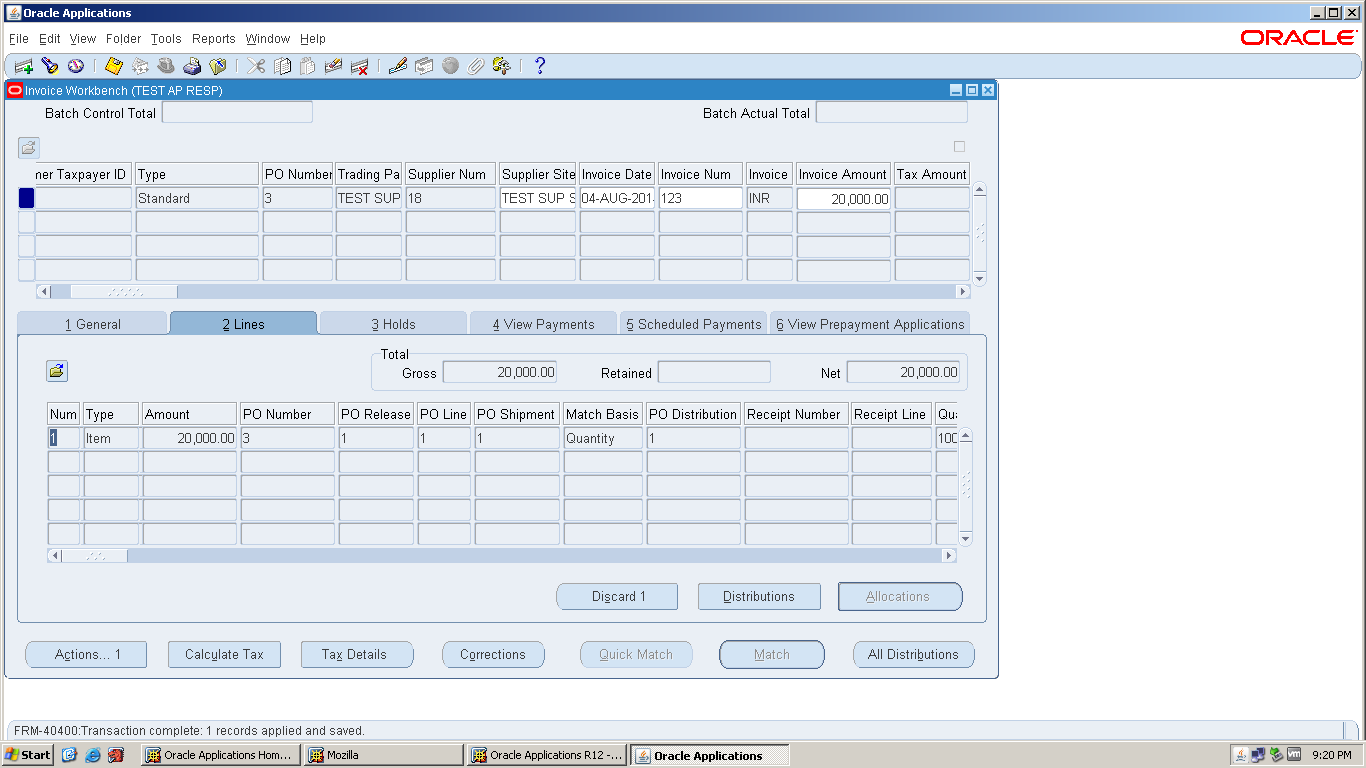
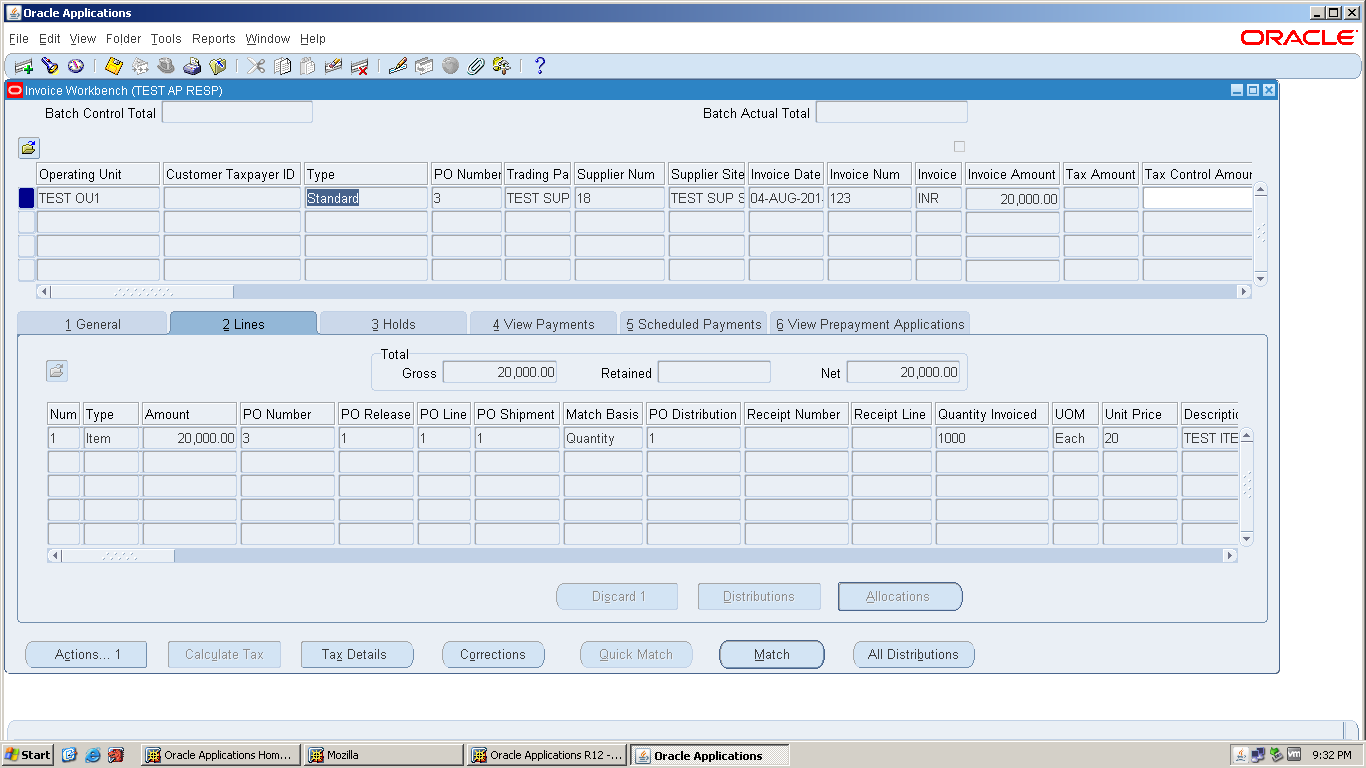
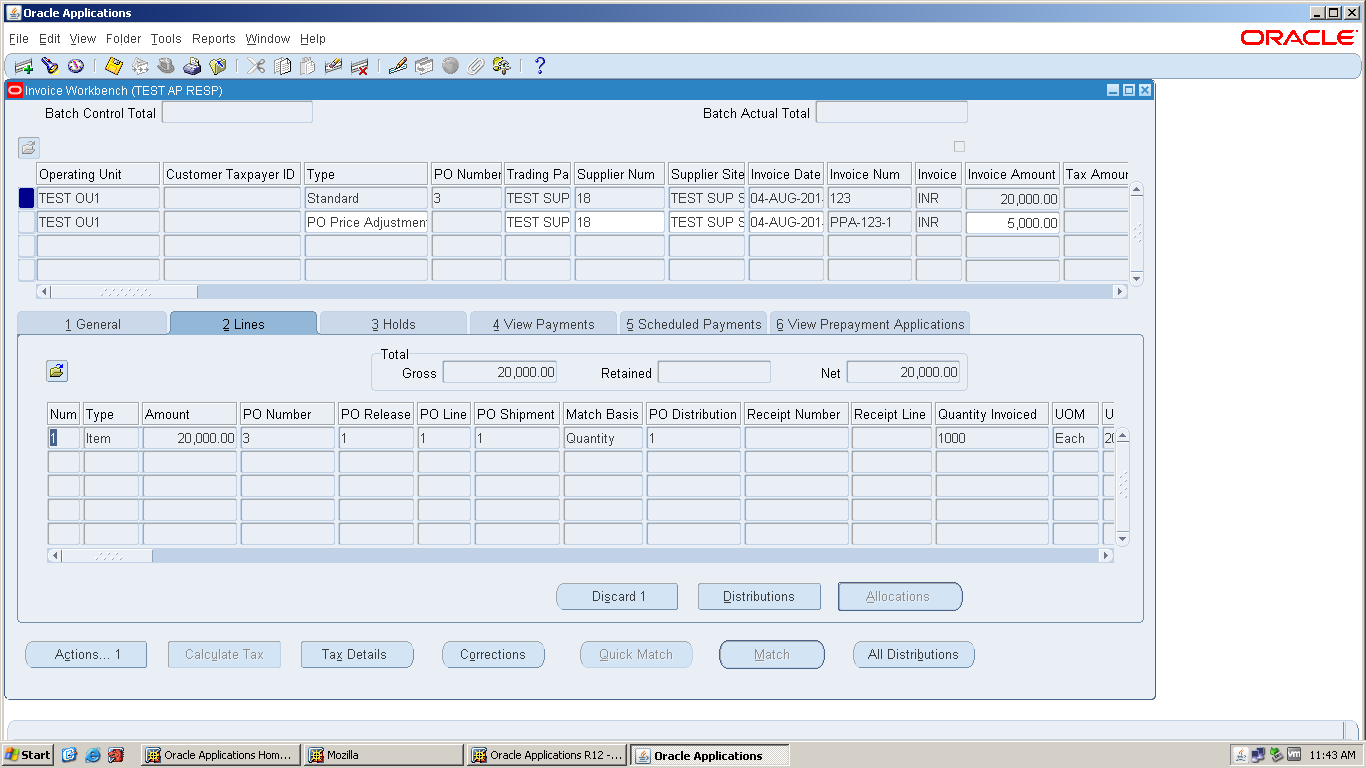
In 11i invoice
body contain header and distribution only.
R12 added
“Lines” in the invoice body.
We can enter
several line items in one invoice and assign distributions to each line
separately.
Added two more invoice types in R12.
i)
Retain
age Release Invoice
ii)
Transportation
Invoice
Retain age Release invoice in general we use this
invoice more in contracts. Customer will retain some amount from the periodical
payment up to the contract get completed for security purpose. And release that
retained amount after the completion of contract.
For
this purpose we use “Complex PO entry form”. This is an HTML page. We have to
match the invoice with this PO.
Transportation
Invoice is used in general, where goods
purchased from one supplier and the same goods transported by another supplier.
To record this transportation separately we use Transportation invoice.
3.
Changes
in the Supplier
In
11i, Supplier header is Global (master Record) and Supplier site is Local
(specific to operating unit).
In
R12, if you give access at supplier site level, this will become Global.
Other
operating units also can access Supplier site information.
This
is a HTML web page called JSP page (Java Screen Page).
We
have only one form to create all 3 types of bank accounts (Internal, Supplier
and Customer) in 11i.
Here
the bank account is Operating unit specific.
In
R12 bank accounts are created separate forms for each type of account.
Here bank & bank branch account
information can be accessed by all operating units if we give access, which are
under same Legal entity.
Legal Entity is owner of the Bank in
R12.
Bank and branches are become parties of
TCA.
Internal
Bank account creation only defined in the banks window.
Whereas
Supplier Bank account will be created in Supplier creation window and Customer
bank account will be created in Customer creation window.
5. TCA – Trading Community Architecture
If
the users of different applications need the same data, the same definition we
store in common data storage area. This concept is called “Trading community
Architecture” (TCA). Such data we called “Party”.
TCA
Parties 11i: Legal Entity, Customer
TCA
Parties R12: Legal Entity, Customer,
Supplier, Bank and bank branches.
In
R12, Legal Entity is owner to Bank, hence Bank also become a party of TCA.
Use
of TCA is data can be accessed at Global level.
TCA
table starts with HZ.
·
This concept we called as “Contra” in 11i.
·
We can cancel the customer and supplier
contra balances for only one party at a time at balances level only.
·
We have to add one more functionality
called “Contra charging menu” to contra
·
Navigation: System Administration à
Application à
Menu
Query:
Ap_Navigate_GUI12.
ü R12
introduced this concept as “AP/AR Netting”.
ü With
this we can net off customer and supplier contra balances for several parties
at a time at transaction level.
ü Site
level netting also possible in R12.
ü System
will automatically update the account balances.
11i
|
R 12
|
ü Payment
batch
ü Form
based
ü From
front end we cannot see the payment details in the Batch
ü Multiple
currency payments are not possible.
|
ü Payment
Manager
ü Web
page
ü It
is a dash board environment. We can create some templates with more options.
ü We
can stop the batch payment process at certain point.
ü We
can process multiple currency payments.
ü Payments
multiple operating units of one legal entity are possible.
ü Payments
of multiple operating units under multiple Legal entities possible.
|
8.
MOAC
– Multi Org Access Control
ü In
11i we have to switch responsibility to access other operating unit.
ü Through
MOAC concept in R12:
·
We can access all operating units
without switching one responsibility to other.
·
We can grouped different operating units
to one “security profile” and then assigned to Responsibility.
ü These are 2 types:
1.
Security profile (MO:
Security Profile & HR: Security Profile)
2.
Global security profile
ü Through
“Global security profile” we can access the operating units though they belong
to different business groups.
ü MOAC
is used to the applications which works at operating unit level (Example: AP,
AR etc.)
9. SLA – Sub Ledger Accounting
1.
We can do some modifications in the
standard process for sub ledger account transactions.
2.
Transaction type is called event class
3.
Event type are specific action on the
invoice (validation, cancellation etc)
4.
Multiple accounting representation can
be achieved through SLA
5.
Multiple period accounting
representation also possible
6.
SLA is used to set up derivation rules
to pick up the fields for accounting
7.
Classification wise liability account,
such as: Regular supplier, Tax Authority, Contract Supplier or Employee. If you
set derivation rule for supplier classification, system will automatically
taking the classification.
8.
Accounting Generator is helping SLA to
create accounting
9.
Reconciliation of month end process is
easy
10.
As and when create invoices, SLA
immediately generate journal entries
11.
Detailed drill down of information is
possible
ü 11i we use
“Payables transfer to General Ledger” program to transfer AP data to GL.
ü R12 to transfer
data from AP to GL, program name is “Create Accounting”.
ü We have 3 modes
in create accounting program.
i)
Draft
ii)
Final
iii)
Final
Post
·
Draft: This
is only for review purpose. No real entries generated.
·
Final:
Real
entries are generated. Transfer data as unposted based on the
Parameters
·
Final Post: Real Entries are generated; data transferred to GL and posted the
Entries based on the
parameters.
ü Data
will transfer to GL through SLA, interface tables by default not available.
11.
Changes
in the invoice work bench
11i we have separate
invoice type for PO Default & Quick Match.
R12 included this
concept in the standard invoice itself.
12.
Asset
invoice process
11i to create Asset
invoice
We have to choose track
as asset fromFolder.
We have to give
distribution account as “Asset Clearing” or “CIP Clearing”.
R12 no need track as
asset, only we have to choose distribution account as “Asset clearing” or “CIP
clearing”.
13.
Change
in the AP Reports
14.
Options
in Accounts payables
Options in 11i: 2
1.
Financial options
2.
Payables Options
Options in R12: 4
1.
Financial Options
2.
Payable options
3.
User operating preferences
4.
Payable system setups (Global
information)
1. MOAC
2. Line
level Cash Application
3. Refund
process automation
4. Revenue
recognition
5. Sub
ledger accounting
6. Customer
screen
7. Late
charges
8. AP/AR
Netting
9. Balance
forward billing
10.
Create accounting
11.
Collections work bench
Refund
process automation
If customer paid excess
amount, that can be paid back (Refund) to customer or can be keep as on account
in customer account.
11i
ü Enter
a debit memo for excess amount received
ü Apply
the excess amount to debit memo
ü Create
Customer as supplier in AP
ü Create
one standard invoice in AP for customer
ü Distribution
account (Clearing Account) should be same in both debit memo and standard
invoice
ü Make
payment
R12
ü Refund
attributes will get enabled in invoice work bench
ü System
will ask for payment method
ü Once
you save, system will automatically create customer as supplier
ü Query
invoice in AP and make payment
It is a process of
recognizing the revenue of a project.
We have to set up
Invoice rules & Accounting rules
Invoice rules: To recognize revenue schedules
Accounting rules: for % of revenue (Fixed duration, Variable
duration, Daily)
Total cost is booked to
Deferred COGS account, if you run a program balance will transferred from
deferred COGS to COGS
Customer creation is
done through HTML page or web page.
Customer bank account
can be created in customer definition.
Late Charges / Financial Charges / Interest
Late charges /
financial charges / Interest charges are specific to operating unit in 11i
R 12:
Late charges are global
and centralized &Fixed amount of interest can be chargeable
Balance forward billing
This concept is called
as “Consolidated billing” in 11i
For credit card or
telephone bills, all transactions together billed at one cutoff date, this is
called consolidated billing.
This can be generated
at customer site level or specific customer account level.
R12:
Balance forward billing
can be generated Daily, Weekly or Monthly through Bill Presentation
Architecture (BPA)
R12 New Features –
Fixed Assets
Payables
to Assets Integration
Payables now has a new level of detail between Invoice Header and Invoice
Distribution. The new level is Invoice Lines. At this new level, new field are
available to enter details that will integrate to Assets, these fields are:
• Manufacturer
• Model
• Serial Number
• Warranty Number
• Asset Book
• Asset Category
Event Accounting
Assets now has event accounting, meaning that every transaction is treated
as a new event to the assets. The impact on assets are as follows:
• Audit trail will no longer show voided transaction types if
changes occur in the month an asset was added.
• No longer forced to delete assets in the period it was added,
due to the event accounting – Oracle treats the addition and retirement as two
separate events, so now Oracle allows assets to be retired in the period added.
• Event accounting also allows for transferring accounting to GL
multiple times in a period.
Auto Prepare Mass Additions
New APIs and Quick Codes are available to automate the Prepare Mass
Additions process. There are default rules available, you can accept the
defaults or choose to create custom rules. These APIs and Quick Codes will
automatically process data and assign the required data attributes, such as:
Depreciation Expense Account
Asset Category
Default rules:
Asset Category
– this is derived from the asset cost clearing account, as long as there
is one to one relationship between the account and asset category. This process
will only impact items in the ‘New’ and ‘On Hold’ queue names.
Expense Account
– this is derived from the clearing account combination and overlaying the
natural account segment with the value of the natural account segment of the
depreciation expense defined in the asset category. If the program cannot
derive an expense combination, the queue name is set to ‘On Hold’.
This should minimize the amount of manual efforts involved in the Prepare
Mass Additions process. Manual updating is still required – some required
fields may not be populated.
Asset Category – a one to one relationship between cost clearing account and
asset category – this will expand the Chart of Accounts of many companies.
Expense Account – the expense combination is going to be derived from a
Balance Sheet account. Oracle will simply overlay the natural account segment,
replacing the cost clearing account leaving all other segment values alone. If
there are certain requirements for P&L accounts versus Balance Sheet
accounts, i.e. cost center required for P&L, this may present issues.
Manual efforts are required to perform Merging, Splitting, Add to Assets and
Merge then Split functionality.
Auto Depreciation Rollback
In Release 12, you will no longer be required to run the Rollback Depreciation
process in order to make corrections to assets. After running depreciation when
a correction or change is required, simply choose the asset to modify. Oracle
will automatically rollback depreciation for this single asset. Make your
modifications and when you re-run depreciation, Oracle will re-calculate
depreciation based on the modifications made to the asset.
The features to rollback depreciation and rollback journal entries that are
in R11i are no longer available in R12.
Month End
Close
Create Accounting process is now used in Assets – journals are created not by a
period, but by events and a date. This means that one can create accounting on
the 15th of a month for all transactions performed at the end of the month.
This allows for clients to view accounting prior to month end for events that
will greatly impact the books(i.e. mass retirements, transfers, etc.)
·